
Keep a centralized record of all user logon and logoffs across your Windows NT4/2K/XP/2003 domain! Know when and where users are accessing your systems! Log easy-to-read data to Event Viewer, simple text files, or export to your own database!
Roll out remotely to your networked machines! No need to enable cumbersome operating system-level auditing or to manually consolidate event logs from multiple machines! |
Greyware Logon Monitor Service records user logon/logoff and system startup/shutdown events on a local machine(s) and then transmits that data to another Logon Monitor service set to be the cental Report Server (by default, the PDC/FSMO of your domain).
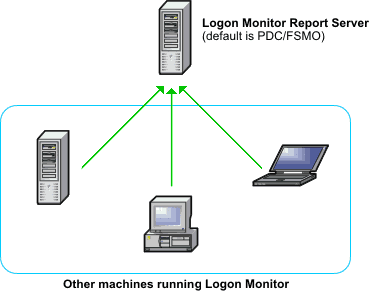 Logon Monitor runs as a system service that is installed on every machine on which you want to record logon/logff data. This locally installed service records all logons/logoffs that happen on the machine, even if the machine is not currently connected to the network (as with laptops). Logon/off events are queued and transmitted to the Report Server which collects the data from each reporting machine. Logon Monitor will also record logon/logoffs of Terminal Services users who connect to a machine running the Logon Monitor Service. Events are recorded in easy-to-read format. The information can be stored three ways:
|
This program requires that you have TCP/IP installed and properly configured on your network.
Logon Monitor can record user logons, user logoffs, service startups, and service
shutdowns. It designed for a corporate LAN environment, or any other Windows
environment where user logon activity needs to be monitored network-wide.
Here is a sample text log file, with debugging enabled so all events and activities are
recorded:
The program will automatically determine your system type and install itself correctly.
After you download the zip file, unzip the contents
to a temporary directory on your machine (or a shared network directory), then
double-click setup.exe and click the Install button. Note: Some of our
products are distributed as self-extracting zip files. You may either just double-click
the distribution file, or rename it to .zip and unzip it.
If Logon Monitor is already installed, the Install button will not be present.
Instead, setup will present an Upgrade button. If older versions of any of the
distribution files already exist on your machine, the program will upgrade them
automatically when you select Upgrade. In some cases, it may be necessary for
you to reboot your machine to complete installation or an upgrade. If so, you will
be prompted to restart.
Logon Monitor installs to the system directory. On Windows 95/98/ME, this is
usually C:\Windows\system. On later versions, it is usually C:\Windows\system32 or C:\WINNT\system32.
Removal
Upgrading
Note: This program may be distributed as a self-extracting zip. If so, it will be named
.exe instead of .zip. You may rename it to .zip if you want to extract the files manually.
Otherwise, run the file you downloaded, and it will extract the files to a temporary
directory and run setup.exe for you.
Command-line Options
To assist with automated installations, the program also supports the /quiet command-line switch.
You may use the /quiet switch in conjunction with /remove, /install, or /upgrade.
When the /quiet switch is specified, the program only displays dialog boxes if errors are encountered;
otherwise, the program performs the requested function and exits immediately. This feature makes it easy to
handle installations or upgrades network-wide with a simple batch file.
Administrative Options and Remote Installation
Examples
Note: For remote installation or removal to work (i.e., specifing a target machine name as in the above two examples
using \\fred and \\barney), both the machine you are working on and the target machine must be logged on under an account
that has administrative privileges on the target machine. You cannot remotely install to
or remove from Windows 95/98/ME machines.
By default, the PDC of the domain will listen for event reports from other machines on the
network. All events are always reported, but the control panel on the PDC controls which events
are echoed to the various logs on the PDC. For example, if you have the PDC set to only record logon events,
then only logon events will be recorded in the PDC's logs. Note that client machines may or may not have their
own individual logs enabled, and the events recorded on client machines do not have to match
the events recorded on the PDC.
After installation, the Logon Monitor applet will appear in the Control Panel. On NT-class machines, only
administrators or those with rights to the administer their machines will be able to modify the settings.
However, if you wish, you may delete the logonmon.cpl file from your System32 directory to
prevent the applet from appearing.
The logonmon.ini file holds
default values used during installation. If the file is present in the setup directory, the
values in the file will be used. If it is not present, Logon Monitor will use its built-in
defaults. After installation, the ini file is not used, and may be deleted. Values are
transferred to the registry (see below) during installation.
The logonmon.ini also explains
each of the values and options. The keywords in the ini file match the keywords in the
registry, so you may use the ini file as a reference. You may use Registry Editor or the
control panel applet to change the settings after installation.
Listening Port
The control panel applet has an Advanced button. On the Advanced Settings page, you may
override the default client-server behavior of the program. By default, only the PDC
listens for events, and all clients send their events to the PDC. You may have any NT-class
machine listen instead of (or in addition to) the PDC, and you may tell clients to send
their reports to a non-PDC machine by specifying the IP address, NetBIOS name, or fully-qualified
DNS name of the server.
Win32 platform machine, including Win95, Win98, Windows ME, Windows NT4/2K/XP/2003.


Installation
Logon Monitor runs as a system service. You must be logged on using an account
with administrative privileges to install, remove, or control the service.
Run setup.exe again, and click the Remove button on the setup dialog.
You may also run logonmon.exe /remove from the system directory. The Remove
button will only be enabled if setup determines that the service is already installed.
To upgrade to a new version, download and unzip the new version to a temporary
directory. Double-click the new setup.exe and click the Upgrade button.
The Upgrade button will only be visible if setup determines that an older version
of the service is already installed. Otherwise, only the Install and Remove
buttons will be shown.
Although not generally needed, you may specify the following command-line options when
running setup.exe or logonmon.exe. You may use a dash or a forward slash before the option. Slashes
are shown below for clarity. Options may also be specified by just the first letter.
The setup program, setup.exe allows you to specify parameters on the command line for remote installation
or removal:
setup [ -install | -remove | -upgrade | -quiet ] [\\targetmachine]
If you are installing to multiple machines, you may wish to edit the logonmon.ini
template file to pre-configure systems as they are installed. See the Notes
section below for details.
    HKEY_LOCAL_MACHINE
        Software
            Greyware
                Greyware Logon Monitor
                    Parameters
The Logon Monitor service running as the Report Server (see the Data Collection section of the
Advanced Settings page) listens on port TCP 1017. If you want to use a
different port, you must enter a value in the SERVICES file on each machine running Logon Monitor called
logonmon/tcp that species the port number you want. For this
change to take effect, the machines must be restarted.

Copyright © 1995-2026 Greyware Automation Products, Inc. All Rights Reserved
All Trademarks mentioned are the properties of their respective owners.
Greyware Automation Products, Inc.
308 Oriole Ct, Murphy, TX 75094
972-867-2794 (voice)